# OpenRouter API key
URL: https://ship-and-scale.vercel.app/docs/accounts/openrouter
Create an OpenRouter API key and save it to enable AI chat in your app.
By the end of this guide, your OpenRouter API key will be saved in the starter's root `.env` file, ready for Kickstart to enable AI chat.
OpenRouter is optional. If you don't want AI chat yet, leave `AI_ENABLED=false` and `OPENROUTER_API_KEY` blank, then return to [Accounts](/docs/accounts).
## Create and save the key [#create-and-save-the-key]
### Sign in and open API Keys [#sign-in-and-open-api-keys]
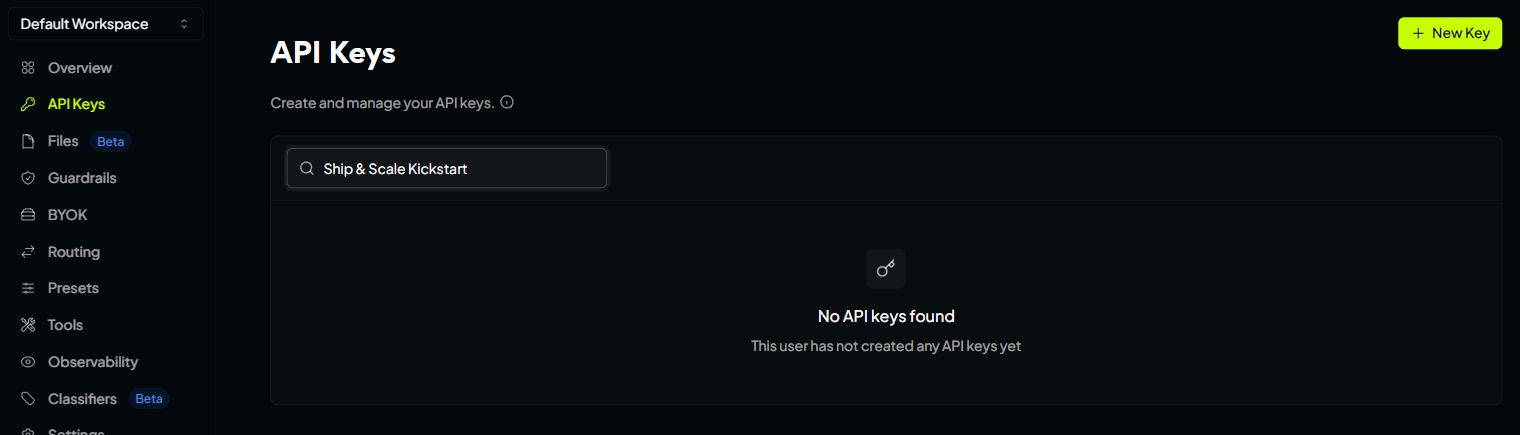
Create an account or sign in at [OpenRouter](https://openrouter.ai/), then open [API Keys](https://openrouter.ai/settings/keys). If you have several workspaces, choose the one for your app using the selector at the top of the sidebar.
Click the green **New Key** button in the top-right corner. Use **API Keys**, not **Management Keys**.
OpenRouter · API Keys → New Key. Existing keys are filtered out for privacy.
### Create a key for your app [#create-a-key-for-your-app]
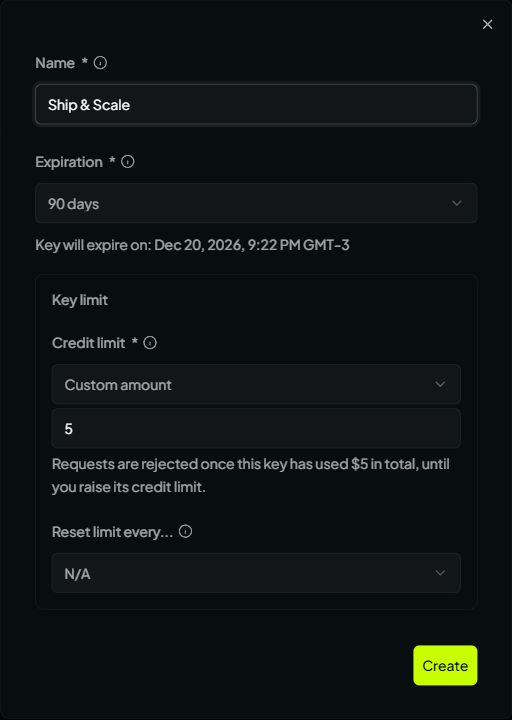
Fill in the form:
1. **Name:** enter a recognizable name, such as `Ship & Scale`.
2. **Expiration:** choose a lifetime, such as **90 days**. Replace the key in your app before it expires.
3. **Credit limit:** choose **Custom amount** and enter a testing budget, such as `5` for a $5 limit.
4. **Reset limit every…:** leave **N/A** for a total limit that doesn't renew automatically.
OpenRouter · Example settings for a key with a $5 total spending limit.
Click **Create**, then copy the generated key and save it privately. You'll paste it into `.env` in the final step.
The credit limit caps this key's usage; it doesn't add money to your account. When the limit is reached, requests stop until you increase it.
### Add credits for model requests [#add-credits-for-model-requests]
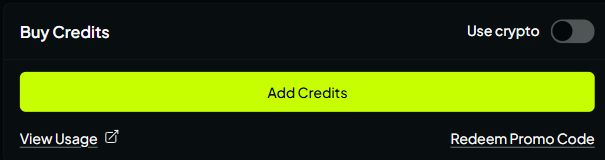
Open [Credits](https://openrouter.ai/settings/credits) from the sidebar. The starter's default model requires paid credits. If your account already has an available balance, you can skip the purchase.
Otherwise, click **Add Credits** under **Buy Credits**.
OpenRouter · Credits → Buy Credits → Add Credits.
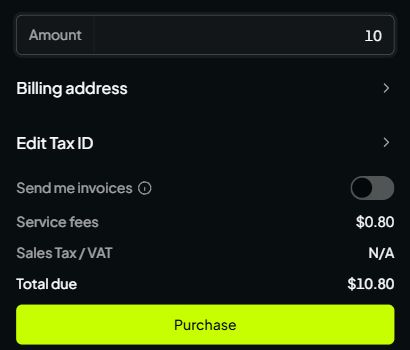
Choose your **Amount**, add a payment method if needed, and review **Service fees**, any tax and **Total due** before clicking **Purchase**. The amounts below are an example; use the total shown in your checkout.
OpenRouter · Review the amount and total before purchasing credits.
After payment, confirm that **Total available** shows a balance. Your app's workspace credits are separate from this OpenRouter balance.
### Save the key in `.env` [#save-the-key-in-env]
Open the root `.env` file beside `package.json`. If it doesn't exist, copy `.env.example` to `.env`. Update these existing lines and save:
```dotenv title="Your private .env"
AI_ENABLED=true
OPENROUTER_API_KEY=replace_with_your_openrouter_key
AI_MODEL=openai/gpt-4.1-mini
```
Replace the example key with your real value. Keep the default `AI_MODEL` for now and only one active line for each setting. On Windows, make sure the file is named `.env`, not `.env.txt`.
**Keep the key private**
This key authorizes spending from your OpenRouter account. Keep it only in `.env`, as described in [Keep your keys private](/docs/accounts#where-to-save-your-keys).
## You are finished when [#you-are-finished-when]
* Your key is saved as `OPENROUTER_API_KEY` in the root `.env` file.
* `AI_ENABLED=true` and `AI_MODEL` has a value.
* Your OpenRouter account has credits and the key has an unused spending allowance.
Continue with Accounts, then Configuration and [Kickstart](/docs/start/project-kickstart). Once your other required credentials are ready, `npm run kickstart:check` checks the key and model without generating a paid response. Full Kickstart installs the AI feature.
**Adding AI to an app you’ve already set up?**
Save the settings above in your existing `.env`, preserving its other values. From the project root, run the check first:
```sh
npm run kickstart:ai -- --check
```
When it passes, install the AI feature:
```sh
npm run kickstart:ai
```
This uses your existing managed Supabase project and preserves workspace credits and chat history. Restart your local app afterward. For an already deployed app, apply the new settings through the [deployment workflow](/docs/start/deployment-kickstart); changing local `.env` alone won't update production.
Open AI chat and send a short message to verify a real response. This uses provider credits. If it fails, check the key's expiration and limit, your OpenRouter balance and model access. See [OpenRouter's key instructions](https://openrouter.ai/docs/api_reference/authentication) or the [AI feature guide](/docs/integrations/ai) for more help.
[Back to Accounts](/docs/accounts)
Check your Kickstart keys, then continue to Configuration.