# Resend API key
URL: https://ship-and-scale.vercel.app/docs/accounts/resend
Create your email API key and prepare a verified sender when you're ready to deploy.
Resend sends your app's authentication emails, workspace invitations and other messages. You need a Full access API key before Kickstart. You can test locally with Resend's restricted sender, then verify your own sending domain before deployment.
## Get your API key [#get-your-api-key]
Create an account or sign in at [Resend](https://resend.com). Use the account that should own your app's email templates and sending domain.
### Open API Keys [#open-api-keys]
Choose **API Keys** in the dashboard, or open [the API Keys page](https://resend.com/api-keys) directly. Select **Create API key** and give it a recognizable name, such as `My app Kickstart`.
### Choose Full access [#choose-full-access]
Set the permission to **Full access**. Kickstart needs to inspect domains and manage email templates as well as send messages. A Sending access key doesn't cover those setup operations.
Authentication and invitation email uses Resend's API-published templates through Supabase's signed Send Email Hook. This is an API-template flow, not SMTP. Kickstart installs the Resend key only as a server-side function secret; keep it out of browser code and Vercel unless a separate server feature needs it.
Create the key and copy its value while it is shown. Save the key itself, not its name or ID. Resend's [key management guide](https://resend.com/docs/dashboard/api-keys/introduction) explains the permission choices.
**Screenshot: Full access in the key form**
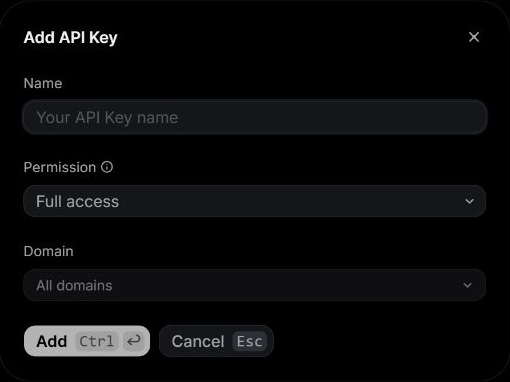 Check the Permission field before selecting Add. The image contains no API key.
### Add the key to .env [#add-the-key-to-env]
In your editor, open `.env` in the main project folder beside `package.json`. If you haven't created it, copy `.env.example` to `.env`. Keep an existing `.env` and edit it.
Find the existing `RESEND_API_KEY=` line, paste the key after `=`, and save:
```dotenv title="Your private .env"
RESEND_API_KEY=replace_with_your_resend_full_access_key
```
Use the actual value you copied and keep one `RESEND_API_KEY` line. Don't add a second assignment at the bottom of the file.
## Start with local test emails [#start-with-local-test-emails]
On a new installation, leave `RESEND_FROM_EMAIL`, `RESEND_TEST_MODE` and the `RESEND_TEMPLATE_*_ID` fields blank. Kickstart discovers a verified domain or selects the restricted test sender, then publishes the templates and saves their IDs.
With no verified domain, emails from `onboarding@resend.dev` can only go to the address associated with your Resend account. Use that address to test the app's email flows. If you have several verified domains, Kickstart asks which one to use.
**Before emailing other people**
Verify a sending domain you control before inviting customers or testing with other recipients. Owning a domain and verifying it for outbound email are separate steps.
## Verify a production sender [#verify-a-production-sender]
You can return to this section when your local app works and you're preparing deployment.
1. Open [Resend Domains](https://resend.com/domains) and add your domain or a sending subdomain, such as `mail.your-domain.com`.
2. Open the DNS settings where your domain is managed. That's usually where you bought it, such as Namecheap, GoDaddy or Cloudflare. If you changed nameservers, use the provider they point to.
3. Add the exact record types, names and values Resend gives you. Each domain has its own verification records.
4. Return to Resend and start verification. DNS changes can take from a few minutes to several hours to appear. Use Resend's diagnostics to fix pending or failed records.
5. Choose a From address on that verified domain and edit the existing fields in `.env`:
```dotenv title="Production sender in .env"
RESEND_FROM_EMAIL=noreply@your-verified-domain.example
RESEND_TEST_MODE=false
```
Replace the example address with your own. If your public contact form should email you, also set `CONTACT_TO_EMAIL` to an inbox you monitor. Resend's [domain guide](https://resend.com/docs/dashboard/domains/introduction) explains DNS verification. Setting up an outbound sender doesn't create an inbox.
## Check that you're ready [#check-that-youre-ready]
For the first Kickstart, a saved Full access key is enough to continue collecting credentials. Once all three are ready, run `npm run kickstart:check`.
For deployment, you also need verified domain status and the production sender settings above. Follow [Deployment Kickstart](/docs/start/deployment-kickstart) to apply them. Editing `.env` alone doesn't update the hosted Auth email hook or an existing production deployment.
**Example: the email settings in .env**
Check the Permission field before selecting Add. The image contains no API key.
### Add the key to .env [#add-the-key-to-env]
In your editor, open `.env` in the main project folder beside `package.json`. If you haven't created it, copy `.env.example` to `.env`. Keep an existing `.env` and edit it.
Find the existing `RESEND_API_KEY=` line, paste the key after `=`, and save:
```dotenv title="Your private .env"
RESEND_API_KEY=replace_with_your_resend_full_access_key
```
Use the actual value you copied and keep one `RESEND_API_KEY` line. Don't add a second assignment at the bottom of the file.
## Start with local test emails [#start-with-local-test-emails]
On a new installation, leave `RESEND_FROM_EMAIL`, `RESEND_TEST_MODE` and the `RESEND_TEMPLATE_*_ID` fields blank. Kickstart discovers a verified domain or selects the restricted test sender, then publishes the templates and saves their IDs.
With no verified domain, emails from `onboarding@resend.dev` can only go to the address associated with your Resend account. Use that address to test the app's email flows. If you have several verified domains, Kickstart asks which one to use.
**Before emailing other people**
Verify a sending domain you control before inviting customers or testing with other recipients. Owning a domain and verifying it for outbound email are separate steps.
## Verify a production sender [#verify-a-production-sender]
You can return to this section when your local app works and you're preparing deployment.
1. Open [Resend Domains](https://resend.com/domains) and add your domain or a sending subdomain, such as `mail.your-domain.com`.
2. Open the DNS settings where your domain is managed. That's usually where you bought it, such as Namecheap, GoDaddy or Cloudflare. If you changed nameservers, use the provider they point to.
3. Add the exact record types, names and values Resend gives you. Each domain has its own verification records.
4. Return to Resend and start verification. DNS changes can take from a few minutes to several hours to appear. Use Resend's diagnostics to fix pending or failed records.
5. Choose a From address on that verified domain and edit the existing fields in `.env`:
```dotenv title="Production sender in .env"
RESEND_FROM_EMAIL=noreply@your-verified-domain.example
RESEND_TEST_MODE=false
```
Replace the example address with your own. If your public contact form should email you, also set `CONTACT_TO_EMAIL` to an inbox you monitor. Resend's [domain guide](https://resend.com/docs/dashboard/domains/introduction) explains DNS verification. Setting up an outbound sender doesn't create an inbox.
## Check that you're ready [#check-that-youre-ready]
For the first Kickstart, a saved Full access key is enough to continue collecting credentials. Once all three are ready, run `npm run kickstart:check`.
For deployment, you also need verified domain status and the production sender settings above. Follow [Deployment Kickstart](/docs/start/deployment-kickstart) to apply them. Editing `.env` alone doesn't update the hosted Auth email hook or an existing production deployment.
**Example: the email settings in .env**
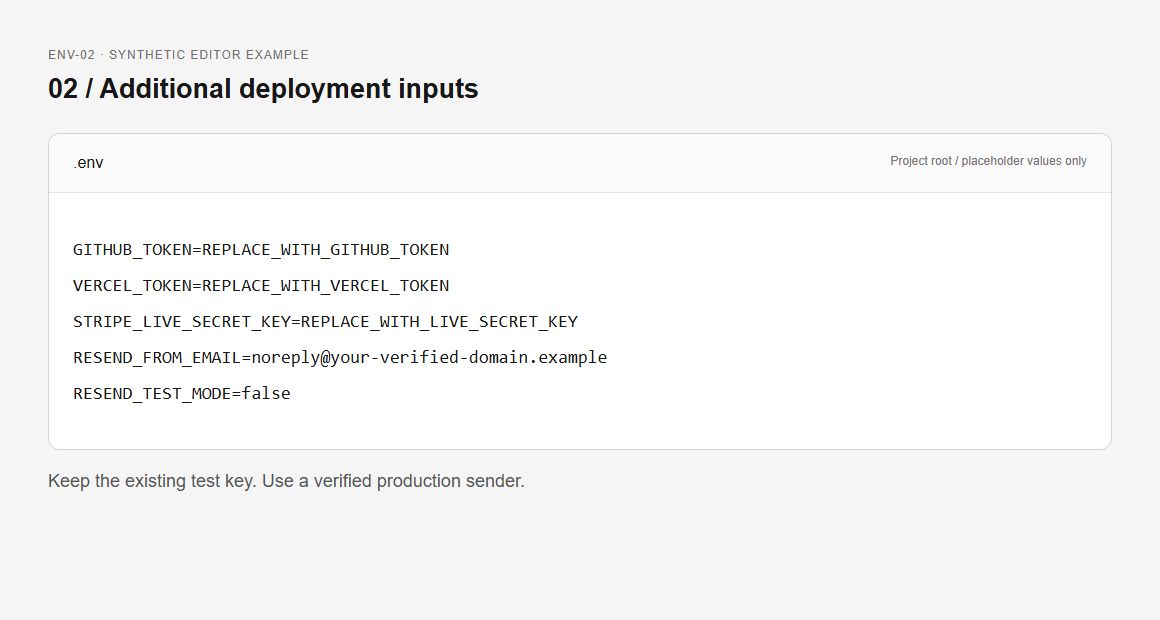 Keep your existing API key. Update the sender fields when your domain is verified.
## Technical reference [#technical-reference]
**Technical reference: permissions, generated settings and recovery**
## Check configuration and real delivery separately [#check-configuration-and-real-delivery-separately]
Run `npm run kickstart:check` only after the other local credentials are ready. Required account-level failures prevent project provisioning. With no project yet, later project and hook checks remain deferred. Template listing access proves neither future template-write permission nor inbox delivery.
After installation, trigger a recovery or sign-in email to an authorized test recipient. Inspect the message in the actual inbox, follow its link once, and verify the result in the application. Check spam placement and sender identity. For production readiness, repeat with an address different from the Resend account email.
A Resend accepted or delivered event is useful transport evidence. It does not prove the recipient saw the email or completed the application flow. Auth links contain one-use credentials, so avoid full URLs in diagnostic screenshots and logs.
## Troubleshoot and rotate [#troubleshoot-and-rotate]
| Problem | Check | Recovery |
| ----------------------------------- | ------------------------------------------ | --------------------------------------------------------------- |
| Domain/template access denied | Key permission and account | Use the intended account's Full access key |
| Mail only reaches one address | `RESEND_TEST_MODE` and sender domain | Verify a production domain, then reconcile sender configuration |
| Several verified domains | Terminal choice or explicit sender | Select the intended domain; do not choose by list order |
| Sender rejected despite a valid key | Domain verification and exact From address | Correct the address/status, then rerun |
| Mail sent, link fails | Active `APP_URL`, callback and link expiry | Use a fresh link at the configured origin |
If Kickstart stops partway through setup, finish it with the same Resend key. Kickstart remembers which key started the installation, so a different key can block recovery. After installation you can replace the key with another one from the same Resend account. Keep the saved template IDs so reruns reuse your existing templates.
To change the email content itself, see [email templates](/docs/email/templates-delivery).
[Back to Accounts](/docs/accounts)
Add OpenRouter if you want AI chat, or continue to Configuration.
Keep your existing API key. Update the sender fields when your domain is verified.
## Technical reference [#technical-reference]
**Technical reference: permissions, generated settings and recovery**
## Check configuration and real delivery separately [#check-configuration-and-real-delivery-separately]
Run `npm run kickstart:check` only after the other local credentials are ready. Required account-level failures prevent project provisioning. With no project yet, later project and hook checks remain deferred. Template listing access proves neither future template-write permission nor inbox delivery.
After installation, trigger a recovery or sign-in email to an authorized test recipient. Inspect the message in the actual inbox, follow its link once, and verify the result in the application. Check spam placement and sender identity. For production readiness, repeat with an address different from the Resend account email.
A Resend accepted or delivered event is useful transport evidence. It does not prove the recipient saw the email or completed the application flow. Auth links contain one-use credentials, so avoid full URLs in diagnostic screenshots and logs.
## Troubleshoot and rotate [#troubleshoot-and-rotate]
| Problem | Check | Recovery |
| ----------------------------------- | ------------------------------------------ | --------------------------------------------------------------- |
| Domain/template access denied | Key permission and account | Use the intended account's Full access key |
| Mail only reaches one address | `RESEND_TEST_MODE` and sender domain | Verify a production domain, then reconcile sender configuration |
| Several verified domains | Terminal choice or explicit sender | Select the intended domain; do not choose by list order |
| Sender rejected despite a valid key | Domain verification and exact From address | Correct the address/status, then rerun |
| Mail sent, link fails | Active `APP_URL`, callback and link expiry | Use a fresh link at the configured origin |
If Kickstart stops partway through setup, finish it with the same Resend key. Kickstart remembers which key started the installation, so a different key can block recovery. After installation you can replace the key with another one from the same Resend account. Keep the saved template IDs so reruns reuse your existing templates.
To change the email content itself, see [email templates](/docs/email/templates-delivery).
[Back to Accounts](/docs/accounts)
Add OpenRouter if you want AI chat, or continue to Configuration.