# Stripe secret key
URL: https://ship-and-scale.vercel.app/docs/accounts/stripe
Find your Stripe test Secret key and save it for Kickstart.
By the end of this guide, your Stripe test Secret key will be saved in the starter's root `.env` file. Kickstart uses it to set up your app's test billing, including products, prices and the billing portal. You don't need to create those yourself.
## Test Secret key [#test-secret-key]
### Sign in and choose a sandbox [#sign-in-and-choose-a-sandbox]
Open the [Stripe Dashboard](https://dashboard.stripe.com). Create an account if you don't have one, or sign in to the account you'll use for your app.
Open the account menu in the top-left corner and choose **Switch to sandbox**. Select your app's sandbox, or choose **Create sandbox** if you haven't made one. Keep using the same sandbox throughout setup.
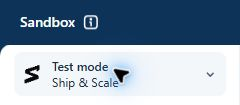
Check for the **Sandbox** banner at the top. An existing **Test mode** environment also works; the screenshot below shows that view. Payments here don't move real money.
Stripe · Confirm you're in a test environment.
### Copy the test Secret key [#copy-the-test-secret-key]
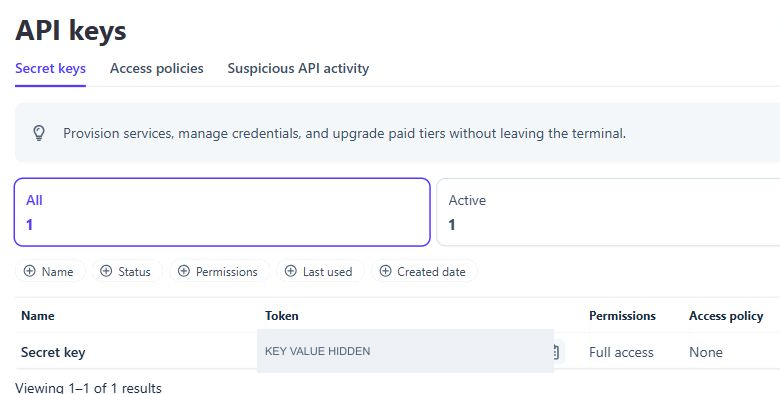
Open [API keys](https://dashboard.stripe.com/apikeys) and check that you're still in your chosen test environment. Select **Secret keys**, find the **Secret key** row and click the copy icon beside its token. If Stripe shows a reveal control first, use it to display the key.
Stripe · Copy the token from the Secret key row. Key values are hidden here.
The key for this walkthrough starts with `sk_test_`. The **Publishable key** at the top starts with `pk_test_` and won't work in this field.
If you have no Secret key, choose **Create secret key**, complete Stripe's verification and name it `Ship & Scale Kickstart`. Copy the key when Stripe displays it. If your account can't manage keys, ask its owner for access. See [Stripe's API key guide](https://docs.stripe.com/keys) if your controls differ.
### Save it in `.env` [#save-it-in-env]
Open the root `.env` file beside `package.json`. If it doesn't exist, copy `.env.example` to `.env`. Find `STRIPE_TEST_SECRET_KEY=`, paste your key after the equals sign and save:
```dotenv title="Your private .env"
STRIPE_TEST_SECRET_KEY=sk_test_REPLACE_WITH_YOUR_KEY
```
Replace the example with your actual key. Keep one line for this setting and leave `STRIPE_LIVE_SECRET_KEY` empty for now.
**Keep the Secret key private**
Anyone with this key can manage your Stripe account's test data. Store it only in `.env`, as described in [Keep your keys private](/docs/accounts#where-to-save-your-keys).
## You are finished when [#you-are-finished-when]
* `STRIPE_TEST_SECRET_KEY` contains your `sk_test_` key in the root `.env` file.
* The key belongs to the test environment you chose for your app.
After saving the Supabase, Stripe and Resend credentials, run `npm run kickstart:check` to check them before setup.
## Live Secret key [#live-secret-key]
You only need this before deploying with billing enabled. First [activate your Stripe account](https://docs.stripe.com/get-started/account/activate) by adding your business and payout details; Stripe needs these before it accepts real payments. Then leave the sandbox, open your live account and return to **API keys**. Copy its live Secret key into the separate field:
```dotenv title="Before deployment"
STRIPE_LIVE_SECRET_KEY=sk_live_REPLACE_WITH_YOUR_KEY
```
Keep your test key in its original field. Save a newly created live key immediately; Stripe only shows it once. Complete the [launch checks](/docs/operations/launch) before accepting real payments.
[Back to Accounts](/docs/accounts)
Continue with the Resend API key.