Setup gets the starter onto your computer and prepares it for Kickstart. You'll connect GitHub, accept access, clone the source, check your development tools and install the packages. When you finish, the project folder will be open in your editor and ready for Accounts.
Use the email address associated with your Ship & Scale purchase and one GitHub account throughout this process.
Before you start
Install these first, then reopen your terminal so it finds them:
- Git, to download the starter.
- Node.js 24 LTS, which includes npm. The starter supports Node 22.15 or newer.
- A code editor, such as VS Code or Cursor. Commands on this page run in its built-in terminal (Terminal → New Terminal) or any terminal opened in your project folder.
You'll also need a free GitHub account.
Get access to the starter
Open Starter kit
Sign in to Ship & Scale with the email address associated with your purchase. The member dashboard keeps the starter, this documentation, the Founder playbook and the Discord community in separate sections.
Choose Starter kit in the sidebar or open View repository access from the overview.
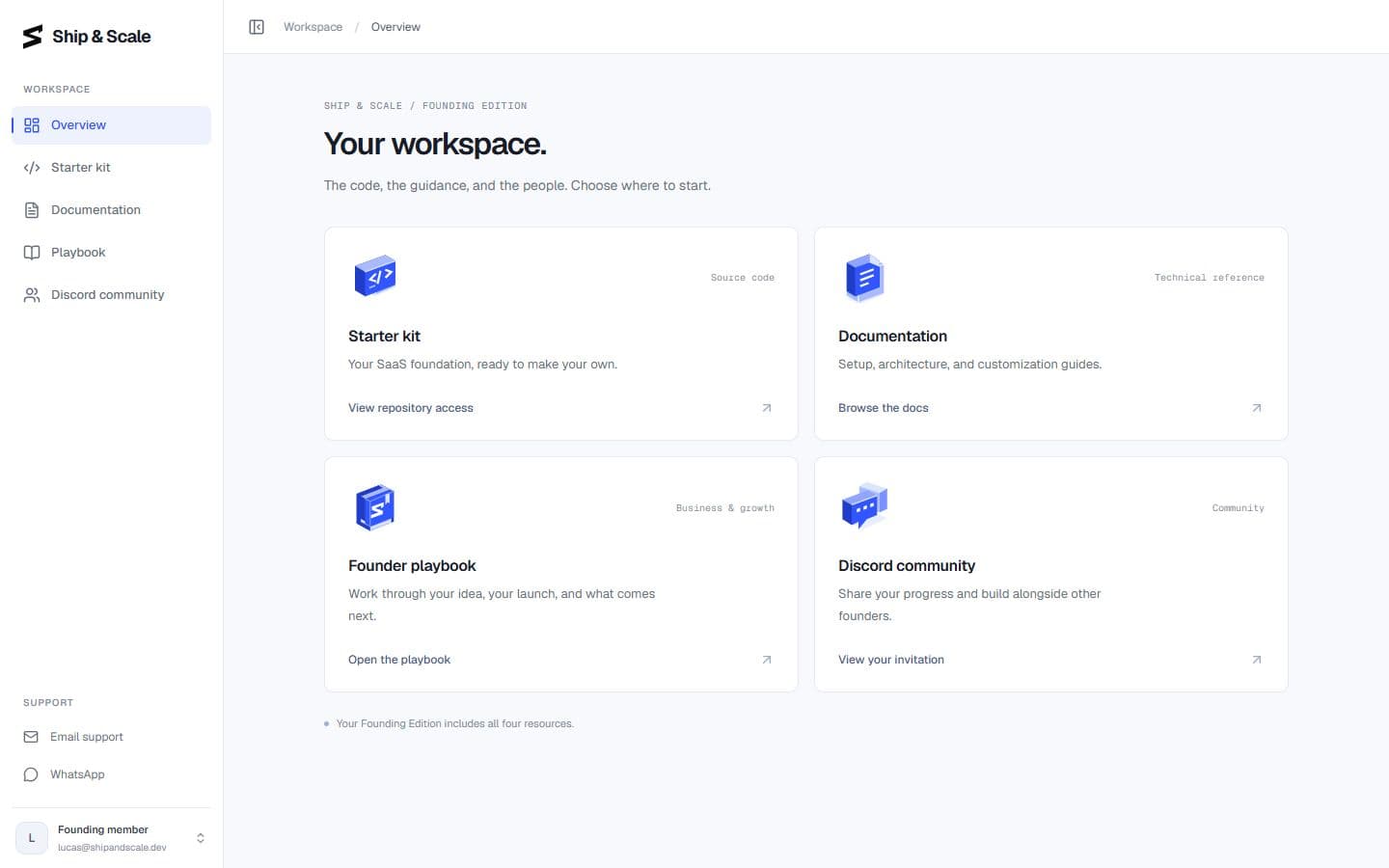
Connect your GitHub account
Choose Connect GitHub, then continue with the GitHub account you want to use for your projects.
GitHub asks Ship & Scale to confirm your identity. The temporary connection does not replace your Ship & Scale sign-in, and it does not add you to the Ship & Scale GitHub organization. Your access is limited to reading the private starter repository.
After GitHub returns you to the member dashboard, the Starter kit card shows the account you connected while it prepares the invitation.
Accept the repository invitation
When the card shows Invitation sent, check that the connected @username is yours. Choose Accept invitation to continue on GitHub.
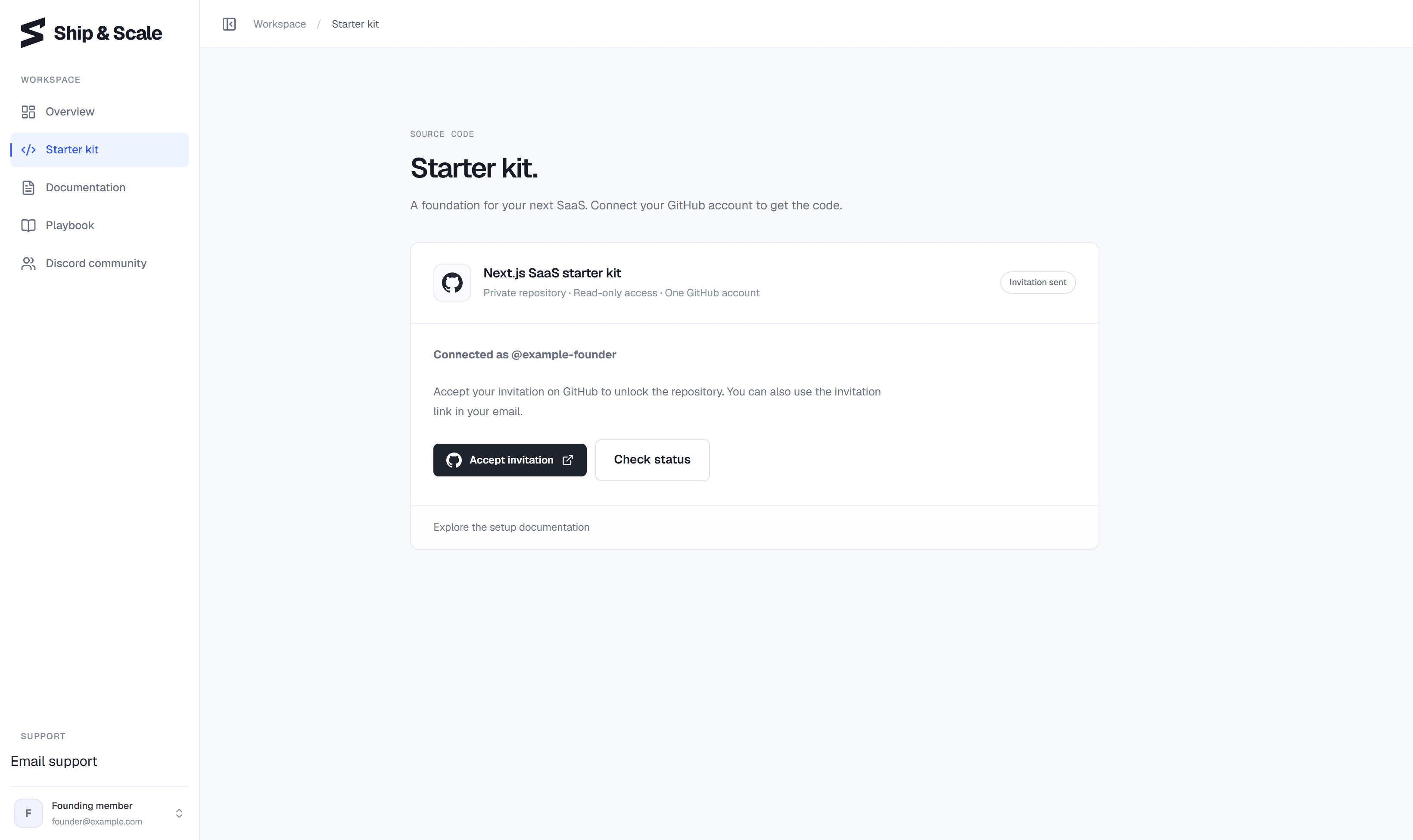
GitHub also emails you the invitation to ship-and-scale/starter-kit, and Ship & Scale sends a reminder with the same link to your purchase email. You don't need to wait for either email: the dashboard's Accept invitation button opens the same GitHub page.
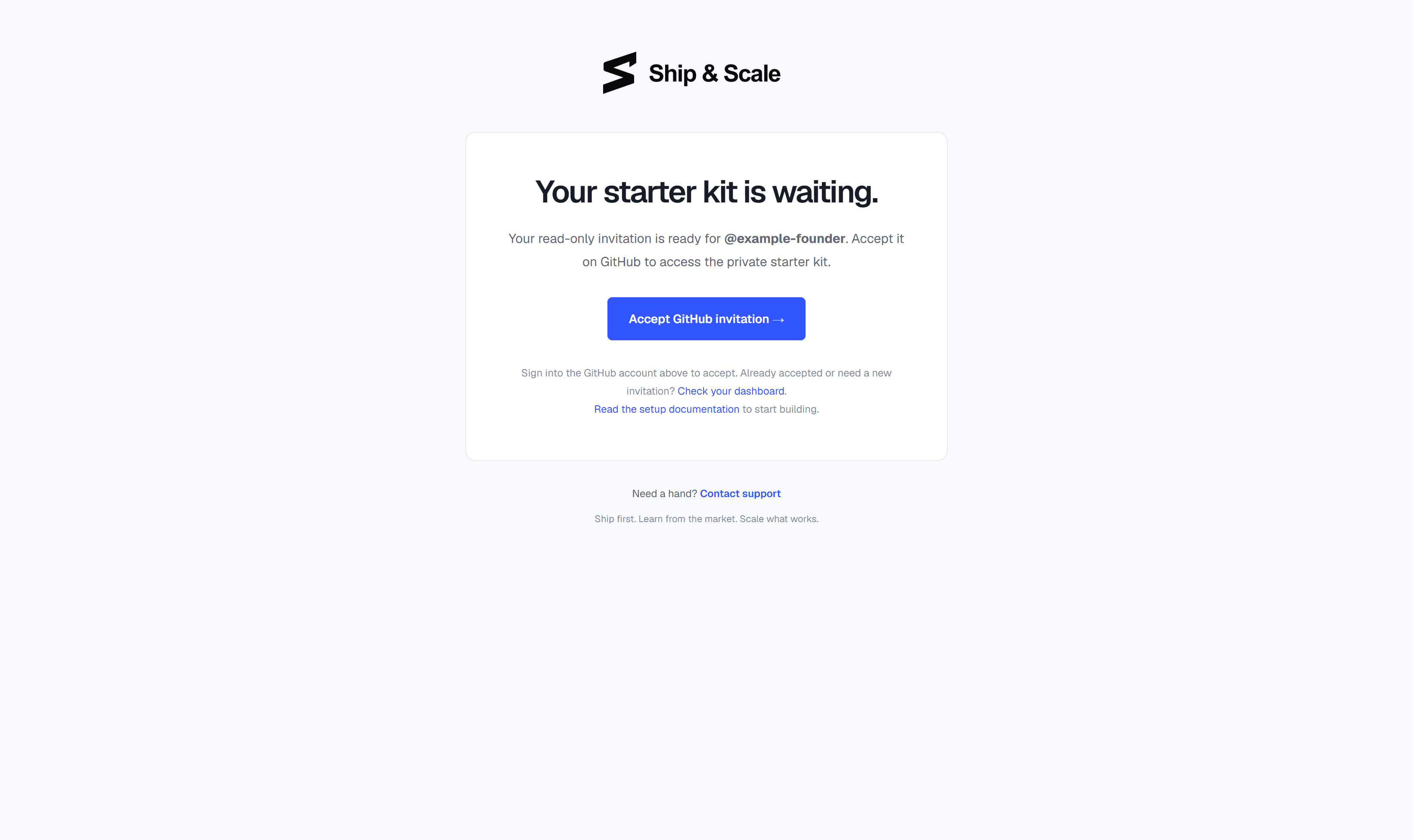
Confirm that access is active
After accepting on GitHub, return to Starter kit. The page checks automatically when it regains focus; choose Check status if it still says Invitation sent. When the status changes to Access active, choose Open starter kit.
If the repository does not open
Make sure GitHub is signed in to the same account shown on the Starter kit card. If the invitation expired, choose Resend invitation. If the page reports a failure, use Retry invitation or the support link in your member dashboard.
Clone the starter
Open ship-and-scale/starter-kit after the dashboard shows Access active, then clone that repository directly. This first checkout is your local source folder. The GitHub repository is read-only, so you can change the files on your computer but can't push changes back to it. Don't use Use this template or create another repository; see the note at the end of this page.
Check that Git is installed:
git --versionIt should print a version number. If the command is not found, install Git from the list above, reopen your terminal and run the check again.
On the starter's GitHub page, choose Code, make sure HTTPS is selected and copy the URL.
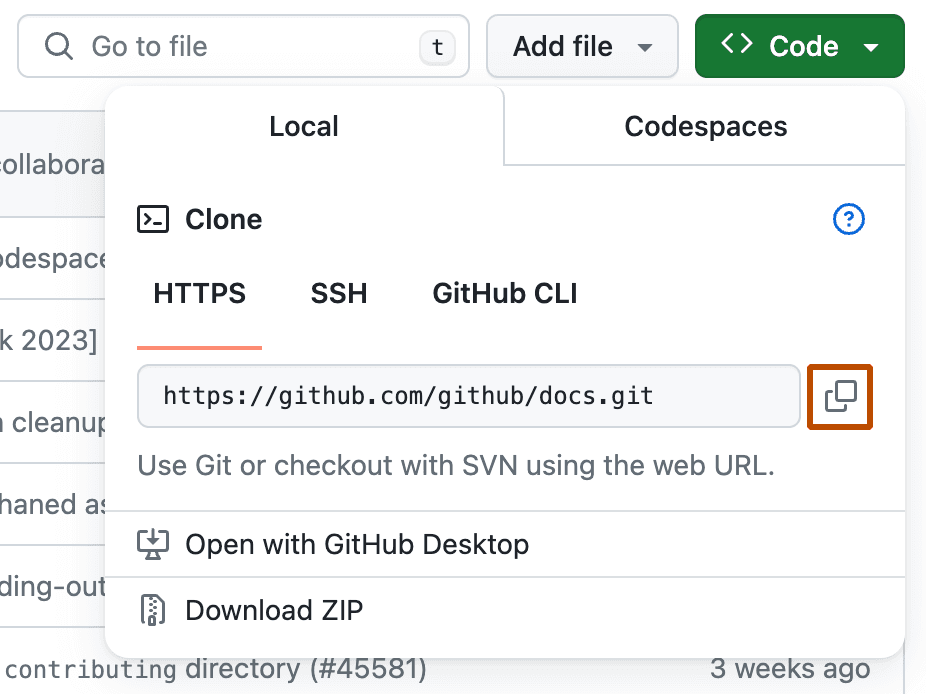
Open a terminal in the folder where you keep projects, then run:
git clone https://github.com/ship-and-scale/starter-kit.git YOUR_PROJECT_FOLDER
cd YOUR_PROJECT_FOLDER
Authenticate with your GitHub account if prompted. Do not put an access token in the clone URL, your shell history or a screenshot.
Whichever method you use, open the new folder in your editor when cloning finishes. It should contain package.json, .env.example, app and scripts.
Install the project packages
Open your editor's terminal in the project folder and check that Node and npm are installed:
node --version
npm --version
Each command should print a version, with Node at 22.15 or newer. If one is not found, install Node.js from the list above and reopen your editor before continuing.
On Windows, if PowerShell says running scripts is disabled for npm.ps1, run the commands with npm.cmd instead of npm, or use the Command Prompt terminal. Microsoft's execution policy guide explains the setting.
Install the versions recorded in the lockfile:
npm ciWait for the command to finish without errors. You do not need Docker or a local database; the starter uses hosted Supabase services.
Before moving on
You are ready for Accounts when all four statements are true:
- Starter kit shows Access active.
- The local starter folder is open in your editor.
- The folder contains
package.json,.env.example,appandscripts. npm cicompleted without errors.
The repository used for deployment
Deployment Kickstart creates your permanent private repository from the source in this local folder, so you don't need to create one yourself. It doesn't change this folder's Git history or push to the Ship & Scale repository. After deployment, you'll clone the new repository, copy your .env into it and continue working there. The deployment guide explains the handoff.
When you will run the app
Setup stops after the packages are installed. Complete Accounts and Configuration next, then use Kickstart to create the hosted services. The Kickstart guide tells you when to run npm run dev and open the local app.
Template 0.0.1 · September 2026 source snapshot